
New Tilt & Turn Window and Faster Component Finder Workflow
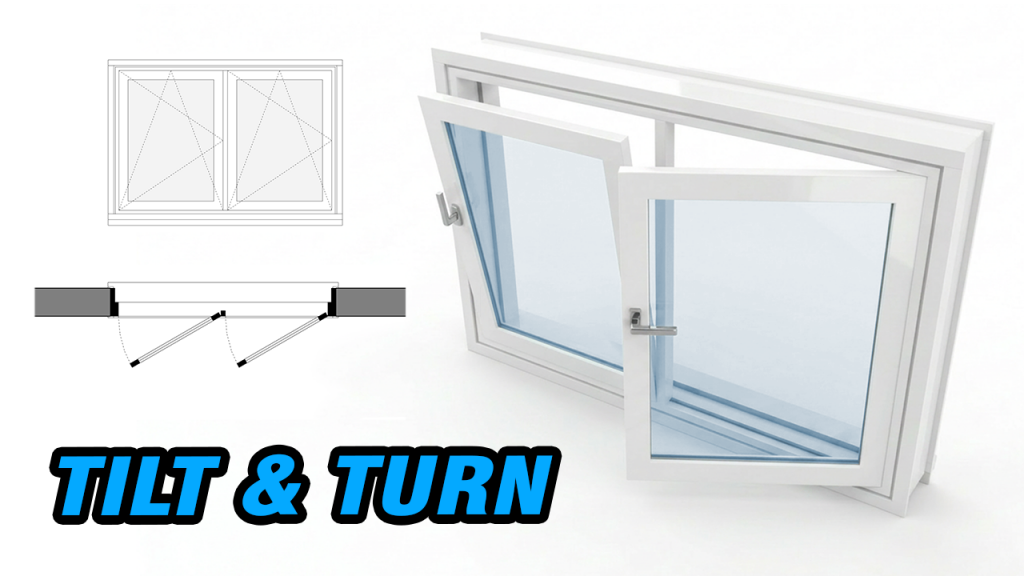
Tilt & Turn Window
The Hopper / Awning flex window now includes a new Tilt & Turn option.
Like a real Tilt & Turn window, you can switch between different opening styles in one flexible component.
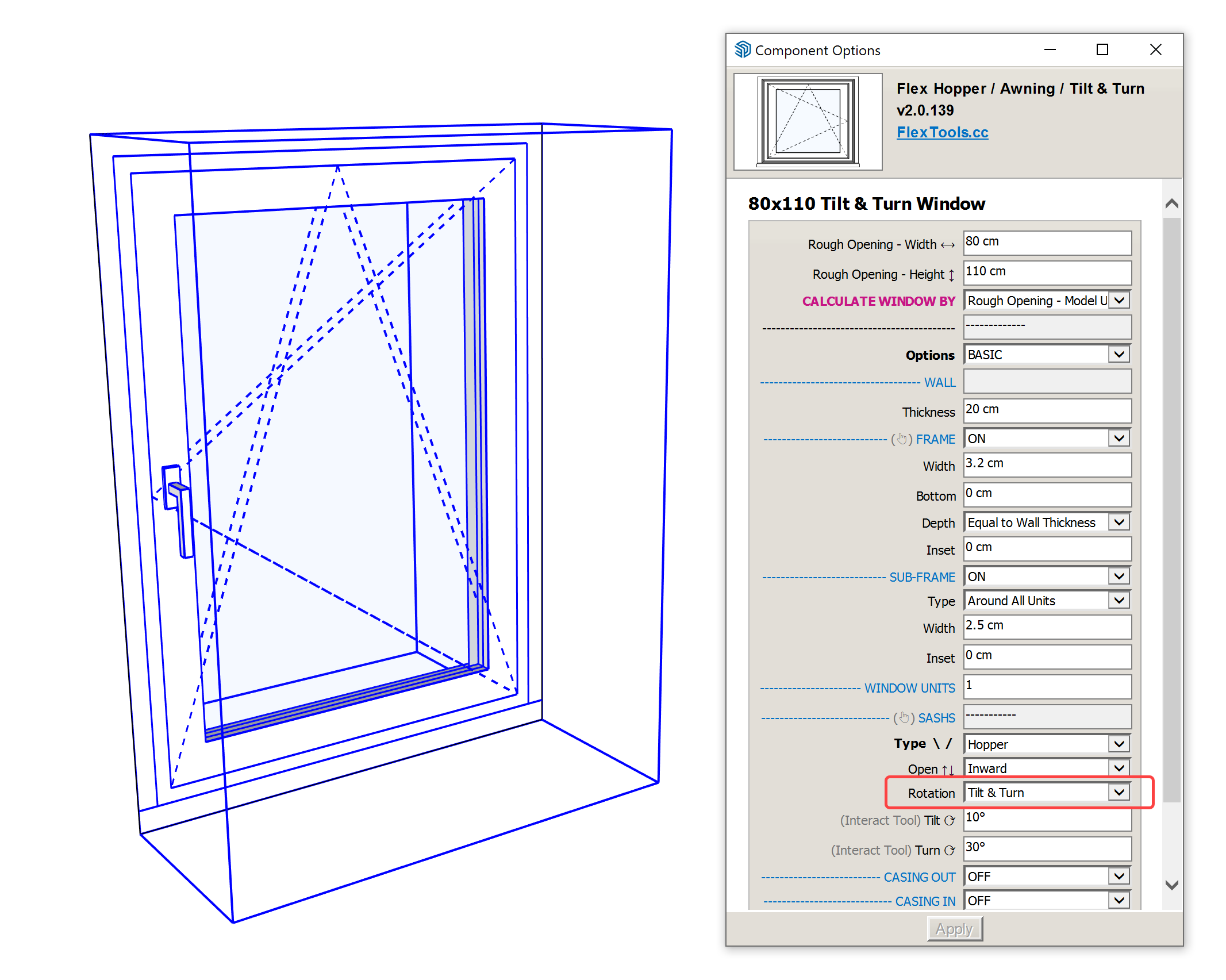
Place it on a wall, choose the rotation type, and see the 3D window adjust instantly. The matching 2D floor plan and elevation symbols update automatically as well, so your drawings stay clear and consistent.
How to reverse the swing symbols
If you show the swing symbols the other way, they can be easily reversed:
1. Change 'Options' to 'Advanced'
2. Scroll all the way to the bottom to the 2D section and change it to 'Show'
3. Change 'Swing Symbol' from 'Opposite Axis' to 'Toward Axis'
Then save the component with Component Finder for later use!
Multiple unit windows
You can have multiple window units of the same type by changing the 'Units' setting.
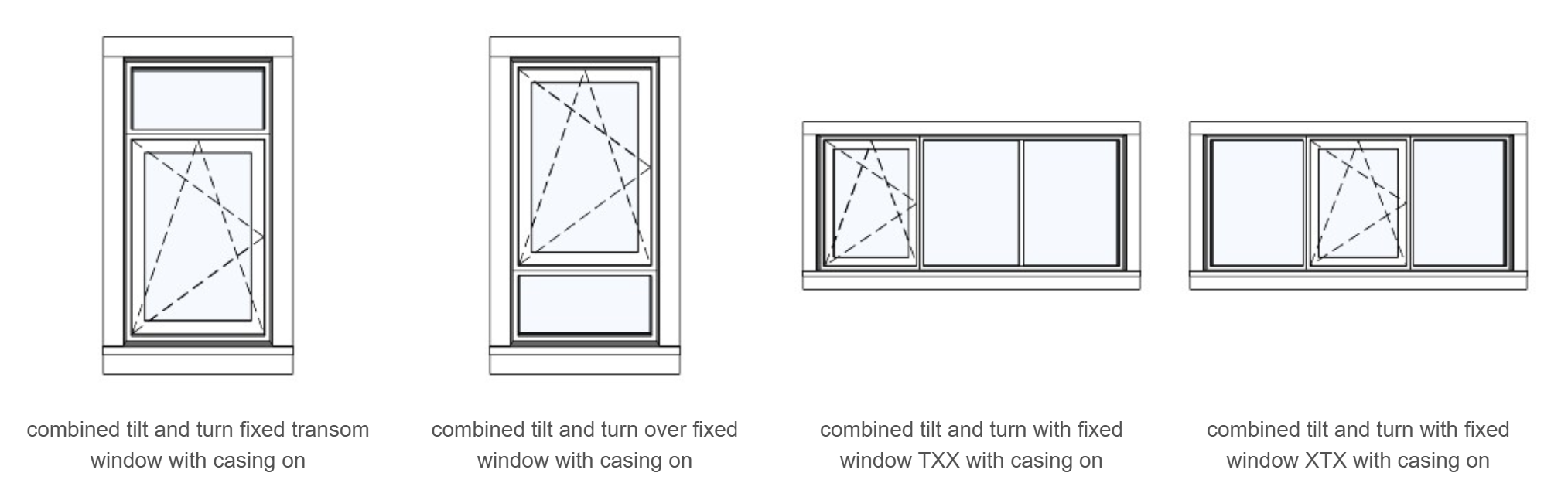
Need a Tilt & Turn combined with a Fixed or other type of window? See how to combine flex components.
Here are a few examples all ready for drag and drop into your models 
Get to your components faster
We’ve also added a small but extremely useful improvement to Component Finder.
On Windows, once Component Finder is open, clicking the Component Finder button again, or calling it with a keyboard shortcut, now minimizes and maximizes the window instead of closing it.
📌 The minimize/ maximize behavior currently works on Windows only.
Component Finder stays loaded in the background. This makes it much faster to pop in and out while placing or saving components.
Assign a keyboard shortcut to Component Finder and you’ll be flying! 
Fixes
This update also includes a few fixes and improvements:
- Fixed an issue where the Component Finder ad banner could get stuck, preventing some Pro users from hiding it.
- Fixed a macOS error that could occur when switching between SketchUp instances.
- Cleaned unnecessary metadata from all doors and windows to help prepare for future wall-cutting improvements.
See the release notes for the full list of changes.
